



Download 3D Scan – Free Kinect‑Based 3D Scanning Tool for Windows
Overview of 3D Scan
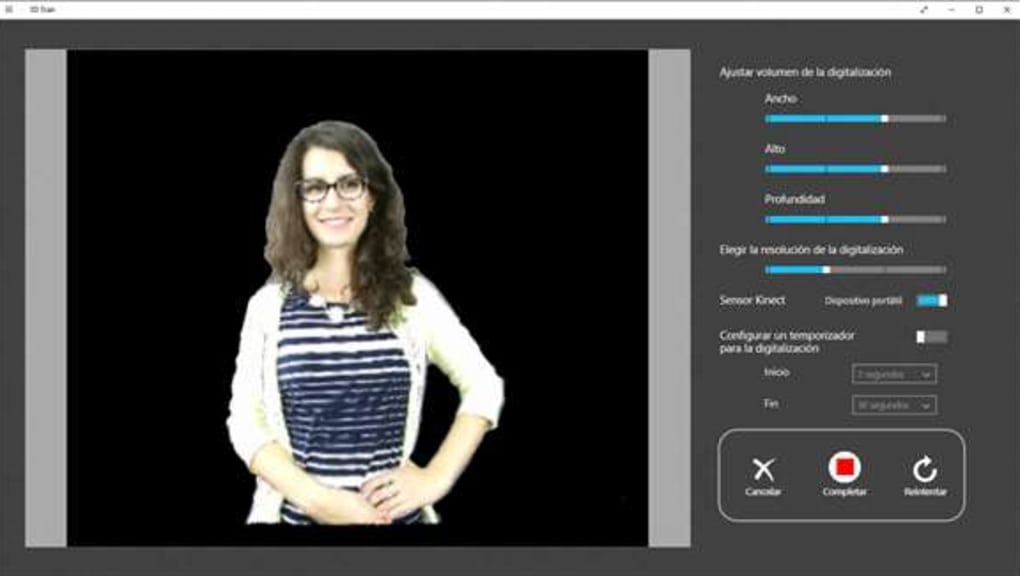
3D Scan is a free multimedia program that turns your Xbox One Kinect sensor into a powerful 3‑dimensional capturing device. Designed with both beginners and hobbyists in mind, the software delivers real‑time color 3‑D scans of objects, small props, and even full‑body “3‑D selfies.” The interface is intentionally minimalist: a single click starts the scan, a one‑click timer lets you pose for a self‑portrait, and the results are instantly viewable in a rotating viewport. What sets 3D Scan apart is its seamless integration with Microsoft’s 3D Builder, allowing you to export the raw point cloud or mesh directly into a more feature‑rich editor for refinement, scaling, or preparation for 3‑D printing.
Because it leverages the depth‑sensing capabilities of the Kinect for Xbox One, you get high‑resolution depth data paired with an RGB camera feed, resulting in vibrant, textured models that look ready for use in virtual reality, game prototyping, or educational projects. While the software is free, it does require the original Kinect sensor and a Windows PC that meets the modest hardware requirements. In short, 3D Scan provides an accessible, cost‑effective gateway into the world of 3‑D digitization, delivering impressive results without the need for expensive laser scanners or photogrammetry rigs.
Key Features and Integration Capabilities
- Real‑time color 3‑D scanning using Kinect for Xbox One.
- One‑click timer for effortless 3‑D selfies.
- Direct export to Microsoft 3D Builder for post‑processing.
- Support for multiple file formats: OBJ, STL, PLY.
- Adjustable scanning resolution and background removal.
- Live preview with rotation, zoom, and pan controls.
- Free download with no hidden fees or subscription.
Why Integration with 3D Builder Matters
After a scan completes, 3D Scan hands the mesh off to 3D Builder, a free Windows app that adds powerful editing tools such as mesh smoothing, hole filling, and boolean operations. This workflow eliminates the need for third‑party CAD software for most hobby projects. Users can clean up stray vertices, add texture maps, or slice the model for 3‑D printing—all without leaving the Microsoft ecosystem. The tight coupling also means that any updates to 3D Builder’s rendering engine are instantly available to 3D Scan users, keeping the pipeline future‑proof.
Fun and Practical Use Cases
From creating personalized figurines to digitizing museum artifacts, the range of applications is broad. Educators can scan classroom objects for interactive lessons, designers can prototype product shapes, and gamers can generate custom avatars. The one‑click 3‑D selfie feature is a crowd‑pleaser at events, allowing participants to walk away with a digital likeness that can be printed as a mini‑statue or used in augmented reality filters. Because the software captures color data, the resulting models retain realistic surface details, making them suitable for visual effects pipelines as well.
Installation and Step‑by‑Step Usage Guide
System Preparation
Before downloading, ensure that your PC runs Windows 10 (64‑bit) or later, has at least a dual‑core processor, 4 GB of RAM, and a USB 3.0 port for the Kinect sensor. Install the latest Kinect for Windows SDK from Microsoft’s website – this driver package provides the necessary low‑level communication between the sensor and the application. After installing the SDK, restart your computer to let the drivers load correctly.
Downloading and Installing 3D Scan
Visit the official 3D Scan download page and click the “Download Free Installer” button.
The installer is a small .exe file (approximately 30 MB). Run the file as an
administrator; the wizard will guide you through a standard installation process: accept the
license agreement, choose an installation folder (the default is C:\Program Files\3D Scan),
and let the setup copy files and create shortcuts. Once completed, launch the program from the
desktop icon.
First Scan – A Quick Walkthrough
- Connect your Kinect sensor to the PC via the supplied USB adapter and power it on.
- Open 3D Scan; the application will automatically detect the sensor and display a live depth preview.
- Place the object on a plain, non‑reflective surface within the sensor’s field of view (about 0.5–2 m away).
- Adjust the “Resolution” slider – higher settings capture more detail but require more processing time.
- Press the “Start Scan” button. The software will begin capturing a point cloud in real time, overlaying a colored mesh as data accumulates.
- When satisfied, click “Stop.” The model will be saved automatically to the default folder
(
Documents\3D Scan\Scans) in OBJ format. - Click “Open in 3D Builder” to launch the editor, where you can smooth surfaces, delete unwanted geometry, or prepare the file for printing.
Tips for High‑Quality Scans
- Use uniform lighting to reduce shadows that can confuse the depth sensor.
- Avoid reflective or transparent objects; these tend to produce noisy data.
- Keep the background simple – a solid matte backdrop helps the software isolate the target.
- For larger objects, move the Kinect around the subject and use the “Merge Scans” feature in 3D Builder.
- Experiment with the one‑click timer to capture yourself from a stable pose, minimizing motion blur.
Compatibility, System Requirements, and Support
3D Scan is built exclusively for the Windows operating system. The Windows 10 (64‑bit) or later environment is required because the Kinect SDK relies on modern USB drivers and DirectX 11 support. While the software does not run natively on macOS, Linux, Android, or iOS, power users can employ a Windows virtual machine or dual‑boot setup to access the program. Below is a concise checklist of the minimum and recommended specifications:
Minimum Requirements
- OS: Windows 10 (64‑bit) or newer.
- CPU: Dual‑core 2 GHz.
- RAM: 4 GB.
- GPU: DirectX 11 compatible graphics card.
- USB: One USB 3.0 port for Kinect.
- Storage: 200 MB free disk space for installation.
Recommended Requirements for Professional‑Grade Scans
- OS: Windows 11 (64‑bit) for best driver support.
- CPU: Quad‑core 3.2 GHz or better.
- RAM: 8–16 GB.
- GPU: Dedicated GPU with at least 2 GB VRAM (e.g., NVIDIA GTX 1050 or higher).
- USB: Dedicated USB 3.0 controller (avoid hubs).
- Storage: SSD for faster processing of large meshes.
If you encounter sensor detection issues, verify that the Kinect SDK is correctly installed and that Windows Device Manager shows the Kinect as “Microsoft Kinect for Windows Device.” The official support forum provides troubleshooting threads, and Microsoft’s driver updates are released periodically.
Pros, Cons, Frequently Asked Questions, and Final Verdict
Pros & Cons
- Pros:
- Completely free with no hidden costs.
- Real‑time color scanning creates vivid, textured models.
- One‑click 3‑D selfie adds a fun, interactive element.
- Direct hand‑off to 3D Builder streamlines post‑processing.
- Low hardware barrier – only a Kinect sensor and modest PC needed.
- Cons:
- Requires the Xbox One Kinect; no support for newer Azure Kinect or other depth cameras.
- Windows‑only – no native macOS, Linux, or mobile versions.
- Scanning larger objects may need manual merging of multiple passes.
- Limited advanced editing tools within the app itself.
- Performance can drop on low‑end PCs when using high resolution.
Frequently Asked Questions
Do I need an Xbox One console to use 3D Scan?
No. The software works with the Kinect for Xbox One sensor when it is connected to a Windows PC via the official USB adapter. The console itself is not required.
Can I export scans to other 3‑D software besides 3D Builder?
Yes. 3D Scan saves files in common formats such as OBJ, STL, and PLY, which can be imported into Blender, MeshLab, ZBrush, and most other 3‑D modeling packages.
What is the maximum object size I can scan?
The Kinect’s effective range is roughly 0.5 m to 4.5 m. For best results, keep objects within 1–2 m of the sensor. Larger items can be captured by moving the sensor and later merging multiple scans in 3D Builder.
Is there a way to improve scan accuracy in low‑light rooms?
While the Kinect includes its own infrared projector, adding a soft, diffuse light source reduces shadows and improves depth data quality. Avoid harsh spotlights or direct sunlight on the subject.
Can I use 3D Scan for commercial 3‑D printing services?
Absolutely. The exported STL or OBJ files can be uploaded to any online 3‑D printing service. Just ensure that the mesh is watertight and scaled correctly in 3D Builder before submitting.
Final Verdict & Call to Action
3D Scan delivers on its promise of a free, easy‑to‑use 3‑D scanning solution for anyone who already owns an Xbox One Kinect. Its real‑time color capture, straightforward UI, and direct pipeline to 3D Builder make it an excellent entry point for hobbyists, educators, and small‑scale designers. While the hardware requirement limits its audience, the software’s stability and feature set are impressive for a free tool. If you’re looking to experiment with 3‑D digitization without investing in expensive laser scanners, download 3D Scan today, follow the quick setup guide, and start creating vibrant models that you can edit, share, or print. Your next 3‑D selfie or prototype is just a click away.







